


Your GCP is through a reseller? How to analyze your costs
If a reseller resold you GCP, the billing data lives in their BigQuery — mixed with every other customer — and what you pay isn't the raw number on the bill. Here's how to get a filtered BigQuery view of just your data, and use MOF to compute what you actually owe.
 MofCloud
 Your GCP is through a reseller? Open a cost tool and the number comes out lower than the invoice the reseller sends you — it never matches.
Don’t assume the tool is wrong. What it shows just isn’t what you pay. This post walks through how the bill actually works for resold GCP, and how to get to the number you really owe (using MOF as the example).
The short answer
- Two steps: have the reseller give you a BigQuery view (just your data), then use MOF to turn it into what you actually owe.
- Why does MOF need to recompute? A resold bill isn’t calculated like a normal GCP bill: you pay GCP’s list price times the discount your reseller gives you — not the raw cost number on the bill (that one is GCP’s cost to the reseller).
- Which credits are yours: usage-based ones (contract discounts, free tier) are yours; account-level perks (promotions, reseller margin) belong to the reseller and shouldn’t land on your bill.
- The discount changes month to month — higher usage can mean a lower rate next month. MOF lets you set it per month.
Why is reseller cost data so hard to get?
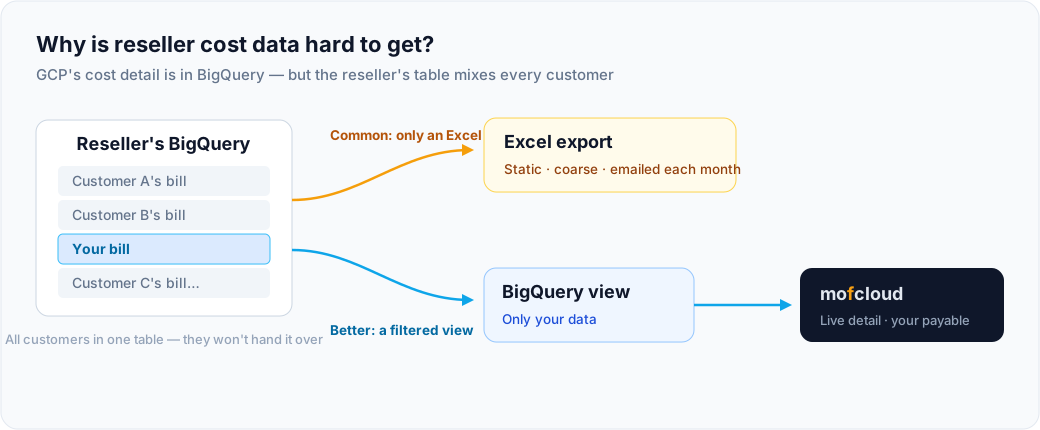
All of GCP’s cost detail lives in BigQuery (billing export). The catch: the reseller’s table has every customer’s billing mixed together. Hand you the whole table and you’d see everyone else’s data — so the reseller won’t give you direct BigQuery access.
In practice, most resellers just email you a spreadsheet each month. You can read it, but it’s limiting: static, high-level, limited to the columns they choose to share, and you wait for them to send it — never mind self-serve drill-down, anomaly alerts, or tag-based showback.
There’s a better way: the reseller can expose just your slice of BigQuery as a filtered “view” and grant it to you — only your data, nothing from other customers. Then you can analyze it like your own bill, live and down to the line item, and pipe it into MOF to compute what you actually owe.
(Exactly how to build the view and connect MOF is in “Step 1” below.)
Why you can’t just read it off the bill
A normal cost tool shows the cost number straight from the bill — but that’s GCP’s cost to the reseller, meant for the reseller, not what you pay.
As a resold customer, you pay something else: GCP’s list price, minus the credits owed to you, times the discount your reseller gives you. So reading the raw number, or just multiplying it by some ratio, won’t give you what you actually owe — you have to recompute from list price. That’s exactly what MOF does.
How the resold bill is actually calculated
Three parts:
① List price — GCP’s undiscounted price. The starting point.
② Which credits are yours — the easiest thing to get wrong:
- Yours: the ones tied to your usage — contract discounts, free tier.
- The reseller’s: account-level perks like promotions and reseller margin. Those go to the reseller and shouldn’t offset your bill.
③ Reseller discount — the rate your reseller gives you on list price, e.g. 0.95 (5% off list). Can differ month to month.
Putting it together, here’s what a resold customer should actually see (example: one month at $1,000 list, $50 of credits that are yours, 0.95 discount):
| Column | How it's computed | Example |
|---|---|---|
| List price | GCP list price | $1,000 |
| Invoice | list × discount | $950 |
| Payment | (list − your credits) × discount | $902.50 |
| Coupon | Invoice − Payment | $47.50 |
(Example is illustrative, not measured.)
Step 1: get your slice of the bill (a BigQuery view)
The reseller’s GCP billing export sits in their BigQuery, with every customer in one table — they can’t hand you the whole thing. The standard move: the reseller creates an authorized view filtered to just your data and grants that view to you. You can query your own bill without ever seeing the source table or anyone else’s data.
Have the reseller set it up (GCP’s built-in authorized-view mechanism):
-
Create the view: in the reseller’s project, add a new dataset (separate from the source billing dataset) and a view filtered to your billing account:
SELECT * FROM `source_project.source_dataset.gcp_billing_export_v1_XXXX`
WHERE billing_account_id = '<your billing account ID>'
⚠️ Keep
SELECT *so the full schema comes through — MOF needs the list-price and credit-detail columns to recompute; cherry-picking columns drops data. (Google itself recommends views over billing export; see the official query examples.) -
Authorize the view on the source dataset: add this view to the source billing dataset’s “Authorized views.” Now the view can read the source table while you still can’t see the source itself.
-
Grant you (or your service account) two roles:
roles/bigquery.dataVieweron the view’s dataset +roles/bigquery.jobUseron the project that runs the queries. (The reseller can also create a service account in their project, grant it these two roles, and just send you the JSON key — a simpler, one-sided grant.) -
Send you these values: project ID (where the view lives), dataset name, view name, and the service account key.
Constraints: the source and view datasets must be in the same region; cross-project is supported. A view’s SQL is hard to change once it’s set, so get the
billing_account_idright the first time.
Connect it in MOF: when you add the GCP account, fill in the service account key, Data Project (where the view lives), Dataset, and Table — put the view name in Table (a view queries just like a table).
If your reseller uses the official Channel Services / rebilling export (Partner Sales Console, which carries their repriced data), it’s the same idea: that table also aggregates all customers, so filter it to your
billing_account_idin a view and grant that to you.
Step 2: turn on Reseller mode in MOF
Once the bill is connected, pick your GCP account in MOF Enterprise → Data Management → Reseller:
- Turn on “Billed through a reseller.” With it on, the account computes your payable as list price × reseller discount; with it off, it shows GCP’s raw cost. (GCP accounts only.)
- ① Monthly reseller discounts: add a discount per effective period, e.g.
2026-07-01 ~ 2027-08-24at0.95. Months with no period fall back to list price (discount 1.0) — they don’t drop back to the raw cost. - ② Credit pass-through: check the credits that are yours (Contract discount / Free tier); it applies to every month of the account and saves instantly. Leave the account-level benefits (Promotion, Reseller margin) unchecked.
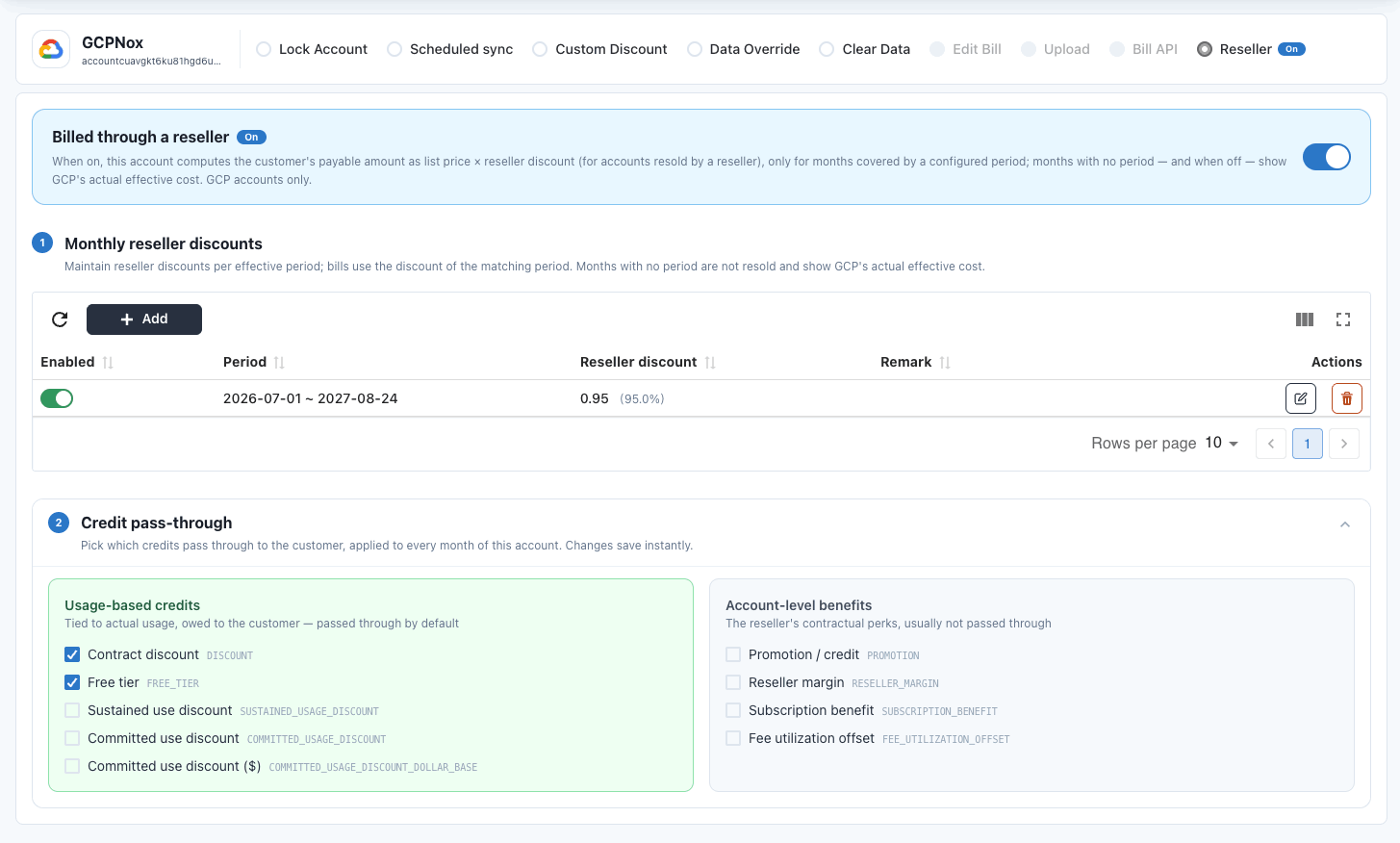
① Maintain the reseller discount per month (0.95 in the example); ② check the usage-based credits that are yours (Contract discount, Free tier) — account-level benefits on the right stay unchecked.
Once it’s on, the account gets a “Reseller” badge across Bill Explorer, Anomaly, and Dashboards, and every amount is recomputed on that basis.
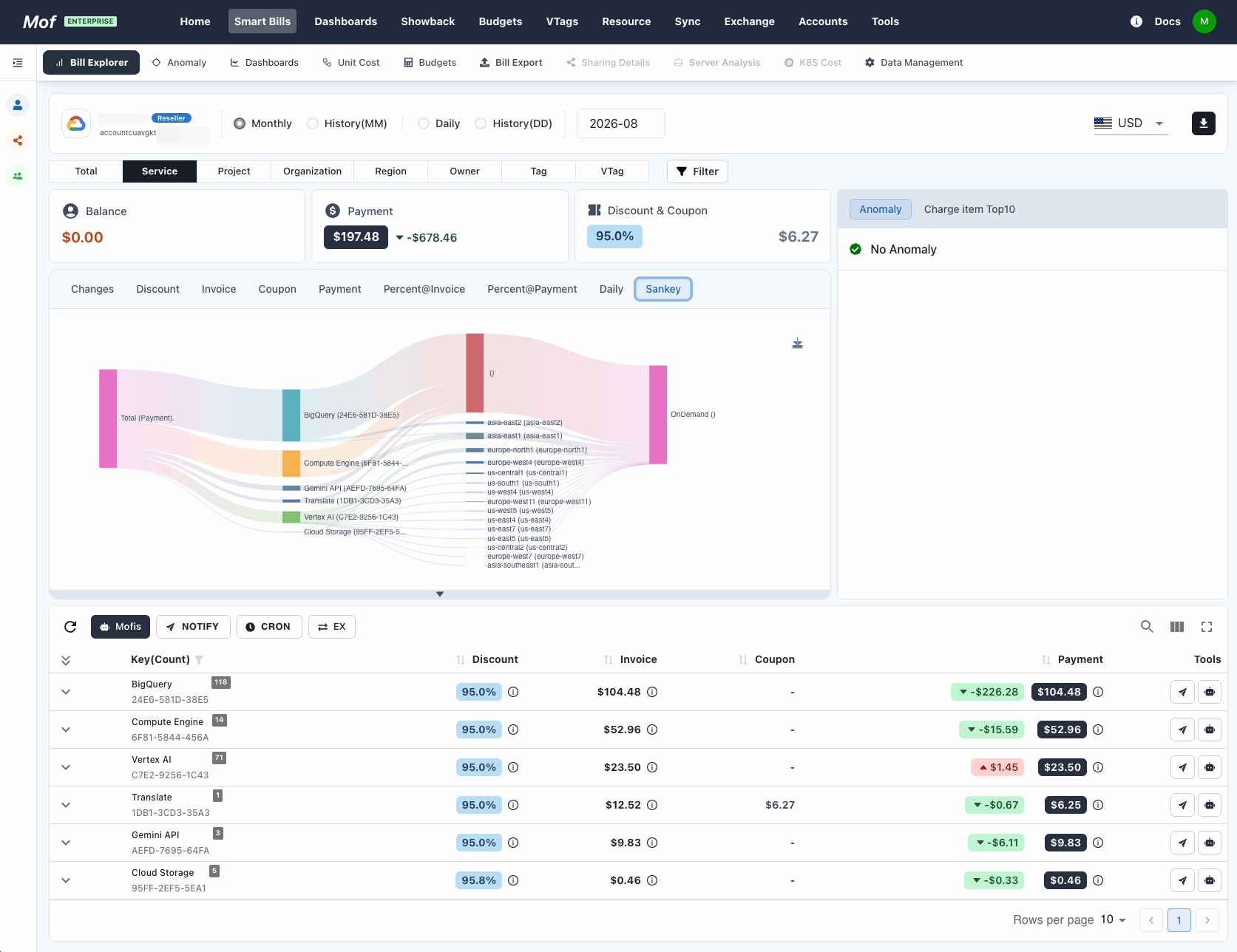
With it on, the account is flagged “Reseller,” and Invoice, Payment, and the discount rate (95% here) are all recomputed on your basis.
Reconciling against the reseller’s bill
A few field-tested notes to judge whether it lines up:
- Both numbers are right — just different bases. MOF’s raw “cost” matches GCP’s original bill exactly; the reseller-mode payable comes close to the reseller’s invoice (their spreadsheet). The gap between them is simply list price with your discount vs. GCP’s raw cost — not a miscalculation.
- It lines up at the line-item level, usually within rounding noise (±0.01).
- Don’t chase a penny-perfect match. Per-row monthly rounding gets closest to the reseller’s bill; a small residual is line-item granularity, not a logic error. If projects and months reconcile to within a few cents, you’re good.
FAQ
Why is the GCP cost in my tool lower than my invoice? Because the tool shows GCP’s raw cost to the reseller, while you pay “list price × reseller discount” — different starting points. To match your invoice, you have to recompute from list price.
Which credits are mine, and which are the reseller’s? The usage-based ones (contract discounts, free tier) are yours; account-level perks (promotions, reseller margin) belong to the reseller and shouldn’t offset your bill. Tick the ones that are yours under MOF’s Credit pass-through.
My reseller gives a different discount each month. Set it per month. Under Monthly reseller discounts, keep one discount per effective period; months with no period fall back to list price.
My reseller won’t give me access to their BigQuery.
Normal, and you don’t need it. Have them build a BigQuery authorized view filtered to your billing_account_id and grant the view to you (you only need dataViewer on the view’s dataset and jobUser on the project). You can query your own bill without seeing the source table or anyone else’s data. In MOF, just put the view name in the Table field.
Can MOF auto-detect that I’m resold? Not always. Bills through an official reseller channel leave traces (a useful hint), but a direct, off-channel resale isn’t detectable — you turn on “Billed through a reseller” yourself.
Does this work for other clouds? GCP for now. The same “recompute from list price” approach can extend to other clouds that expose list price and itemized credits; more will follow.
Current as of August 2026. The example figures are illustrative, not measured; GCP’s billing fields and a reseller’s pricing may differ, so check against your own bill and your reseller agreement.
Related
Content · 18 Aug, 2026
Why cloud costs spiral out of control
Company · 19 Aug, 2026
Beyond the dashboard: FinOps needs judgment, not just visibility
Feature · 20 Aug, 2026
Meet Mof: multi-cloud cost, one clear view
Content · 21 Aug, 2026
FinOps tools for Chinese clouds: Alibaba, Tencent, Volcengine & Huawei (2026)
Content · 22 Aug, 2026
Is AI really cheaper than people? Five hidden costs (2026)
All your multi-cloud costs, in one place
The dashboard is ready to self-host; the cloud architect Agent is coming — join the waitlist for early access.