


Your Azure is through a reseller? How to analyze your costs
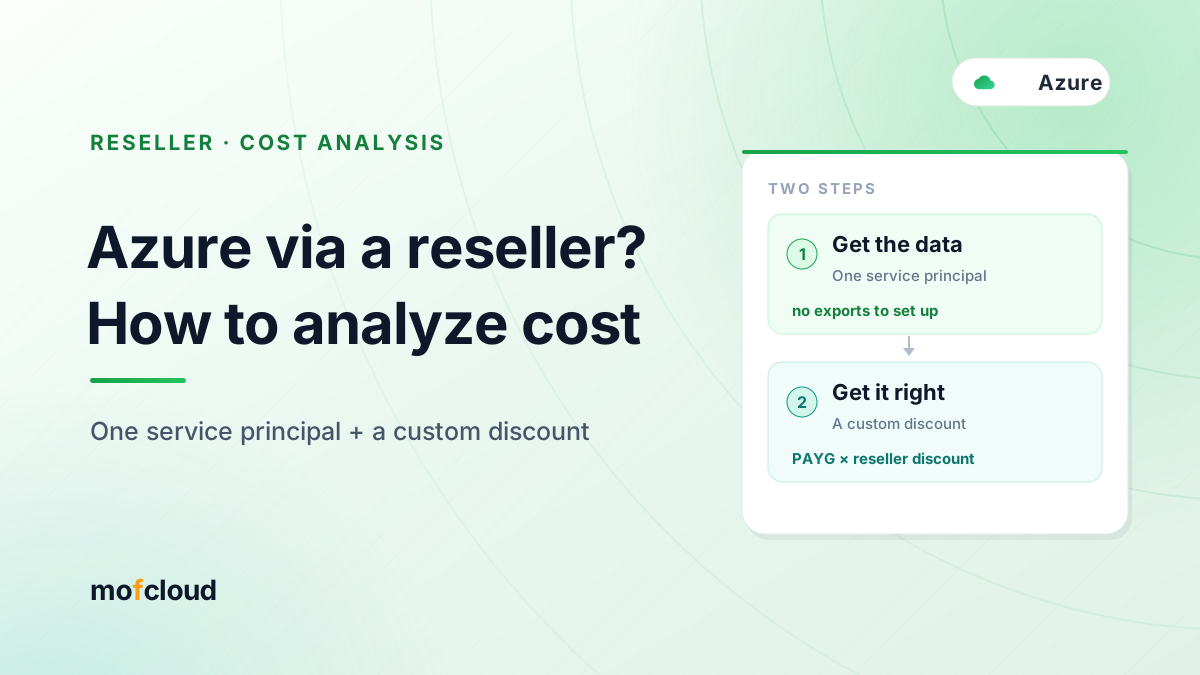
Buying Azure through a reseller (CSP)? What you see is the pay-as-you-go rate, not what you pay the reseller. Azure is the easiest of the three to connect — one service principal, no exports to set up — and a custom discount turns PAYG into what you actually owe.
 MofCloud
 Your Azure is through a reseller (CSP)? Then cost analysis comes down to two questions: how to get the billing data, and whether the numbers you see match your actual bill.
Good news: both are easy — and of the three big clouds, Azure is the simplest to set up. This post covers how to connect reseller-billed Azure to a cost tool, and how to turn it into what you actually pay (using MOF as the example).
The short answer
- Two steps, both built in:
- ① Get the data: the reseller gives you a service principal with read access to your subscription or billing account — MOF generates the report itself (no exports, no storage container, no view to build — less setup than AWS or GCP).
- ② Get the number right: use a custom discount to apply the reseller’s discount per period (e.g. 90%).
- Why the discount? As a CSP customer you see the pay-as-you-go (PAYG) retail rate, but what you pay the reseller is PAYG × the reseller discount — not the retail rate itself.
Why reseller (CSP) Azure is different
Your Azure sits under the reseller’s CSP (Cloud Solution Provider). The reseller can turn on cost visibility for you (an Azure Resource Manager policy), and then you see your subscription’s usage at PAYG retail rates (Cost Management for partners).
But retail isn’t what you pay: your deal with the reseller is usually PAYG with a discount (or at par). So when the PAYG number in a tool doesn’t match the reseller’s invoice, that’s expected — the difference is that discount.
Step 1: get the data (one service principal is enough)
Azure is less work here than the others: no CUR/S3 to set up like AWS, and no BigQuery view to build like GCP. All you need is a service principal (app registration):
- The reseller (or you) creates a service principal in the tenant;
- Grant it Cost Management Reader on the subscription or billing account scope (read-only cost, how to assign access);
- Gives you the tenant ID, application (client) ID, and client secret, plus the subscription or billing account.
With those, MOF calls Azure’s Generate Cost Details Report API so Azure builds the report on demand, then downloads and parses it — you don’t pre-configure any scheduled export.
In MOF: add an Azure account → fill in Application (client) ID, Directory (tenant) ID, and Password, then under Extension set Type = Subscription ID (or Billing Account) with its value, and save to sync. (Leave the billing account empty and MOF lists all the billing accounts you can access — handy when you don’t have billing-account-level permission.)
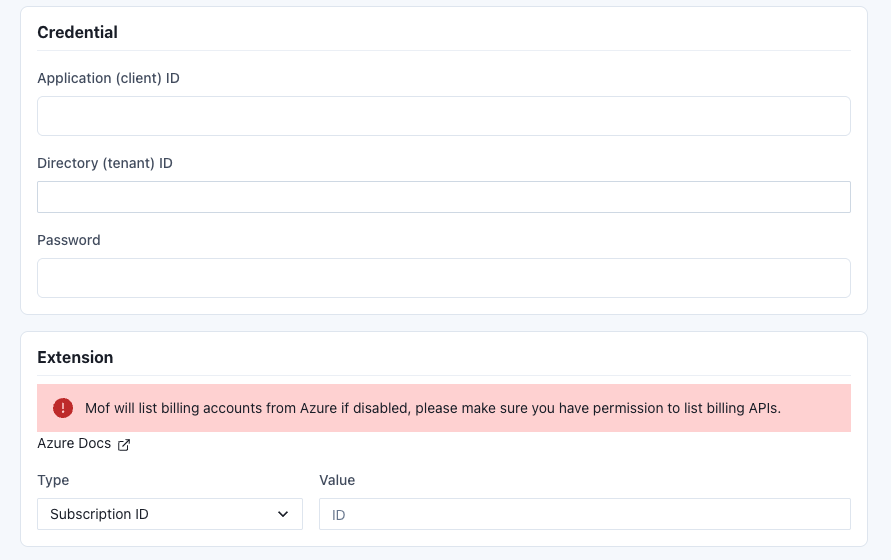
Fill the service principal’s three values (client ID / tenant ID / password) and pick a subscription or billing account under Extension; leave the billing account blank to list all you can access.
Step 2: get the number right (with a custom discount)
Azure doesn’t need GCP’s “reseller mode,” because what you get is already the PAYG retail rate — so multiplying by your reseller discount gives what you owe. MOF’s built-in custom discount does exactly that.
In MOF: pick the Azure account → Data Management → Custom Discount → Add discount:
- Type: Standard Discount (applies to all of the account’s billing data);
- Discount: the rate your reseller gives you, e.g.
90%; - Period: a start / end time. If the discount differs by month, add one row per period.

Pick “Standard Discount,” set the reseller’s rate and an effective period; add more rows if it differs by month.
Once it’s applied, Bill Explorer and the other views show the account’s amounts as PAYG × discount — what you actually pay.
Reconciling against the reseller’s bill
- Check the discount against the reseller’s invoice: PAYG × rate should land close to the invoice; if it lines up, the rate is right.
- Don’t chase a penny-perfect match: small gaps are usually rounding, not a miscalculation.
- One assumption: this holds when your Azure cost is on PAYG rates (typical for Azure Plan CSP). If the reseller gives different discounts per service, a single Standard Discount can’t capture that — approximate it with per-period rates, or handle that case separately.
FAQ
Why doesn’t the Azure cost in my tool match the reseller’s invoice? What you see is the PAYG retail rate; what you pay is PAYG × the reseller discount — the gap is exactly that discount. Add the custom discount and they line up.
What does the reseller need to give me? A service principal (tenant ID + application/client ID + client secret), with Cost Management Reader granted on your subscription or billing account. That’s it.
Do I need to set up an export or a storage container? No. MOF calls Azure’s API to generate the cost details report on demand and pulls it — which makes Azure lighter to connect than AWS (needs a CUR) or GCP (needs a BigQuery view).
My reseller gives a different discount each month. Add one row per effective period under Custom Discount.
Does Azure have GCP’s “reseller mode” auto-recompute? It doesn’t need one. GCP gives you an already-discounted cost, so it has to be recomputed from list price — that’s what reseller mode is for. Azure gives you the PAYG retail rate, so a custom discount multiplied on top is all it takes.
Current as of August 2026. Azure Cost Management permissions and CSP billing may change over time — check Microsoft’s official docs and your own environment, and confirm the discount rate against your reseller’s invoice.
Related
Content · 18 Aug, 2026
Why cloud costs spiral out of control
Company · 19 Aug, 2026
Beyond the dashboard: FinOps needs judgment, not just visibility
Feature · 20 Aug, 2026
Meet Mof: multi-cloud cost, one clear view
Content · 21 Aug, 2026
FinOps tools for Chinese clouds: Alibaba, Tencent, Volcengine & Huawei (2026)
Content · 22 Aug, 2026
Is AI really cheaper than people? Five hidden costs (2026)
All your multi-cloud costs, in one place
The dashboard is ready to self-host; the cloud architect Agent is coming — join the waitlist for early access.