


Your AWS is through a reseller? How to still get your cost data
If a reseller opened your AWS account, you're a member account and the org-wide bill sits with them. But in most cases you can still export your own CUR and connect it — no reseller needed. Here's the self-test, the two situations, and the exact IAM policies.
 MofCloud
 Plenty of companies don’t open AWS directly — they go through a reseller for billing, invoicing, and support in their own language. Then you want to do cost analysis, and the first worry is: the bill sits with the reseller, can I even read it?
Good news: in most cases you can handle it yourself, no reseller needed. This post shows how to tell which situation you’re in, and for each one, how to connect your bill to a cost tool (using MOF as the example) with the smallest possible permissions.
The short answer
- In most cases, you can connect it yourself: create a CUR export in your own account, and MOF reads it automatically — no reseller involved (Situation A).
- Only if the reseller has restricted you (blocked you from creating exports) do you need their help: have them deliver the export to your bucket, hand you a read-only key, or open up an S3 bucket (Situation B).
- Which one is you? Spend a minute on the self-test below — can you create your own export?
First: how did the reseller set up your account?
Your own AWS account is both payer and management, so you export the bill with a click. Under a reseller you’re a member account — and whether you can do it yourself comes down to how the reseller attached you. It’s all AWS Organizations today, but in two flavors, and the difference is exactly whether they can use an SCP (service control policy). Per the AWS docs, a member account can create its own CUR export by default (its own usage only):
| Model | Can the reseller govern / restrict you? | Can you self-create an export? | How you connect |
|---|---|---|---|
| Consolidated billing only (a "linked payer" setup) | No — billing only (this mode can't use SCPs) | Always | Go straight to Situation A |
| Organizations, all features (full org management) | Yes, and may block you with an SCP | By default yes, unless an SCP blocks it → self-test | Can create → A, blocked → B |
How do you know which one you’re in? Ask the reseller — or just skip the question and run the self-test below. If you can create an export, you can; no need to categorize.
So what actually gates you isn’t “being on a reseller” — it’s whether that reseller has specifically restricted you.
Three AWS rules to keep in mind
Before the how-to, three rules (confirmed against the official docs):
- You can self-create an export, but only into a bucket you own. A member account can create a CUR / Data Export by default; AWS requires the destination S3 bucket to be owned by the account that creates the export (AWS docs).
- Export definitions can’t be read across accounts. You can’t
ListExports/GetExportan export definition that lives in another account (there’s no resource policy for it, and it isn’t in AWS RAM). So you can’t read the export definition sitting in the reseller’s account. - CUR 2.0 Data Exports can deliver output across accounts (since 2026-03). The reseller can write a CUR 2.0 export’s output files straight into your bucket — note that’s “delivering output,” not “sharing the definition.” Legacy CUR doesn’t support cross-account delivery.
Quick self-test: can you create your own export?
In your own account, go to Billing and Cost Management → Data Exports and click Create.
- You get into the create flow → Situation A (next section) — just build it yourself.
- You’re denied by an SCP / lack permission → Situation B — jump down to “Situation B.”
Situation A: create your own export (easiest)
No reseller involved, all inside your own account:
- Open Billing and Cost Management → Data Exports → Create (AWS: creating data exports);
- Pick Standard data export (CUR 2.0) or FOCUS 1.0;
- Set the destination to an S3 bucket in your own account (create one if needed — AWS adds the write policy for you);
- Done — AWS writes the bill into that bucket daily.
In MOF: Add an AWS account → keep Data source method on the default Pick from list → enter your own account’s accessKey / secretKey → MOF lists the exports in your account, tick one and save.
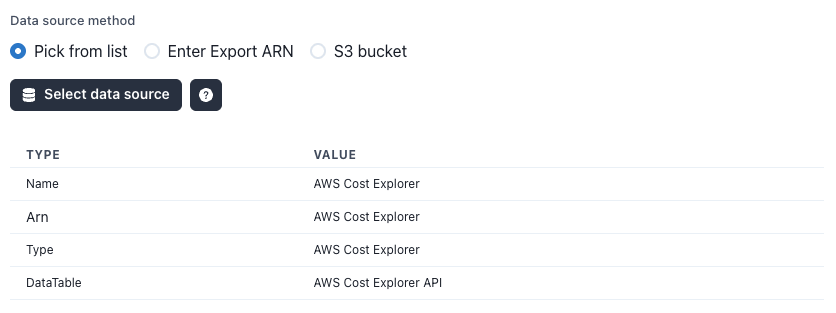
“Data source method” has three options: Pick from list, Enter Export ARN, S3 bucket. Situation A uses the default, Pick from list.
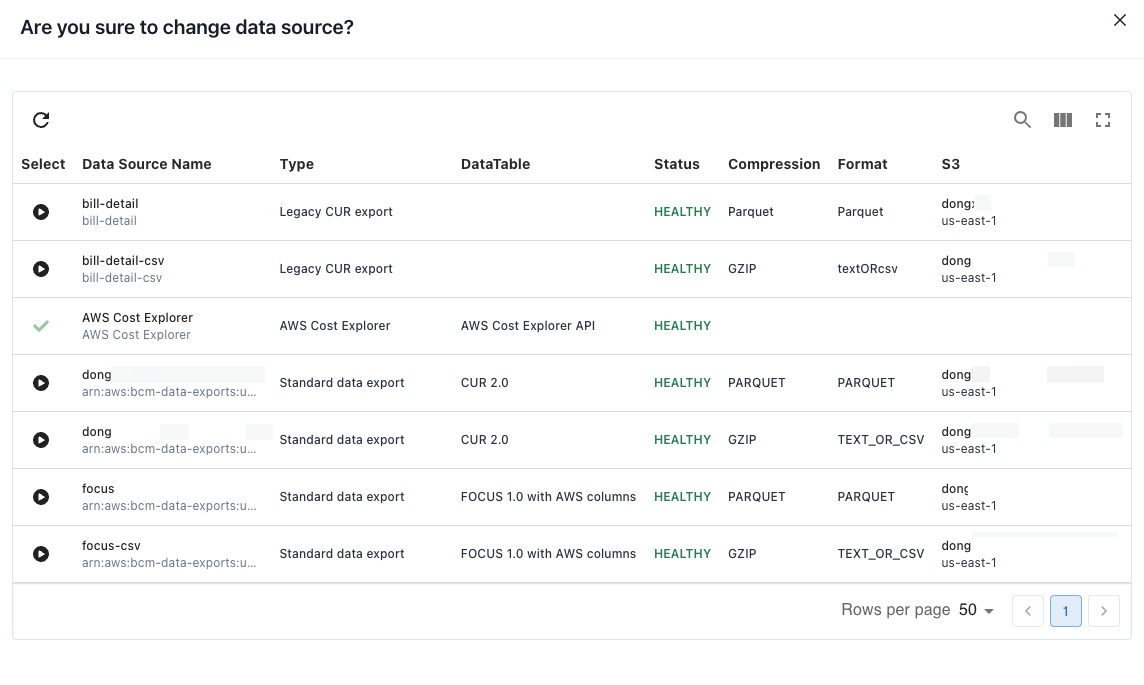
MOF lists the CUR exports in your account (CUR 2.0 / FOCUS / Legacy) — tick one and save.
This covers most people. Only if the self-test blocked you do you need Situation B below.
Situation B: blocked by an SCP — get the reseller to help
If you can’t self-create, the reseller has to step in. Ordered best to fallback by “how much they’ll give you,” there are three:
B-1: have the reseller deliver the export to your bucket (best, since 2026-03)
The reseller creates a CUR 2.0 export in their account and sets the destination S3 to your bucket. The files land in your own bucket, so you just read your own bucket — no cross-account reads at all.
- Reseller side: when creating the export, set the destination to your bucket (your account ID as the owner + your bucket name);
- Your side: add the bucket policy below to your bucket to let the AWS Data Exports service write into it. ⚠️ Note the
SourceArn/SourceAccountare the account that creates the export — i.e., the reseller’s account ID, not yours:
{
    "Version": "2012-10-17",
    "Statement": [
        {
            "Sid": "EnableAWSDataExportsToWriteToS3",
            "Effect": "Allow",
            "Principal": { "Service": ["bcm-data-exports.amazonaws.com"] },
            "Action": ["s3:PutObject"],
            "Resource": "arn:aws:s3:::<your-bucket>/*",
            "Condition": {
                "ArnLike": {
                    "aws:SourceArn": "arn:aws:bcm-data-exports:us-east-1:<reseller-account-id>:export/*"
                },
                "StringEquals": {
                    "aws:SourceAccount": "<reseller-account-id>"
                }
            }
        }
    ]
}
This is the official AWS policy template — it grants
s3:PutObjectonly (write, not read or delete). Once set up, don’t change this bucket policy or the bucket owner, or delivery breaks. In AWS China, swapawsforaws-cnandus-east-1forcn-northwest-1.
- Bonus: since the files land in your own bucket, you can read those values (
name/prefix) straight off your bucket.
In MOF: connect the same way as B-3 below — S3 bucket direct read — just point it at your own bucket.
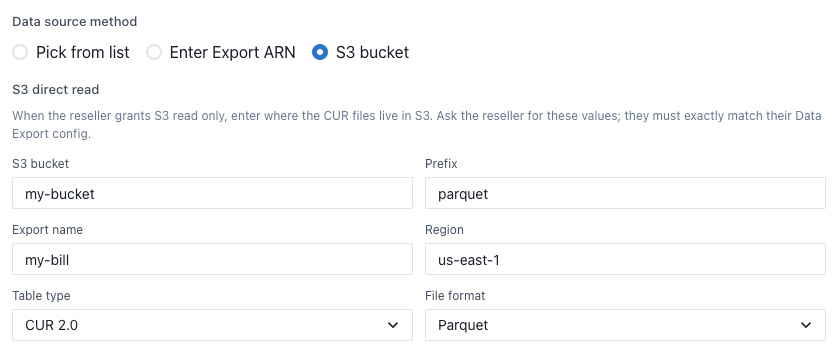
Same as B-3: pick “S3 bucket” and fill the six values — just put your own bucket as the “S3 bucket.”
B-2: the reseller hands you a scoped key (Enter Export ARN)
For when the reseller is willing to issue a tightly scoped key in their account: it can read one specific export definition, plus the matching S3 prefix.
Note: B-2 only works for a Standard data export (CUR 2.0 / FOCUS) — those have an ARN. Old-style Legacy CUR has no ARN (it’s identified by report name), so use B-3.
Ask the reseller to configure this (create an IAM user/role in their account with this policy):
{
  "Version": "2012-10-17",
  "Statement": [
    {
      "Sid": "GetExportDef",
      "Effect": "Allow",
      "Action": "bcm-data-exports:GetExport",
      "Resource": "arn:aws:bcm-data-exports:us-east-1:<reseller-account-id>:export/<EXPORT_ID>"
    },
    {
      "Sid": "ListCurFiles",
      "Effect": "Allow",
      "Action": "s3:ListBucket",
      "Resource": "arn:aws:s3:::<bill-bucket>",
      "Condition": { "StringLike": { "s3:prefix": "<your-prefix>/*" } }
    },
    {
      "Sid": "GetCurFiles",
      "Effect": "Allow",
      "Action": "s3:GetObject",
      "Resource": "arn:aws:s3:::<bill-bucket>/<your-prefix>/*"
    }
  ]
}
The reseller gives you the key, Export ARN, and region. This key has GetExport but no ListExports — exactly enough, and it can’t list anyone else’s exports; the s3:ListBucket is also pinned to your prefix by the s3:prefix condition.
In MOF: Add an AWS account → Data source method → Enter Export ARN → paste the Export ARN, click Verify & use, and MOF echoes back the parsed bucket, table type, and format — check them, then save.
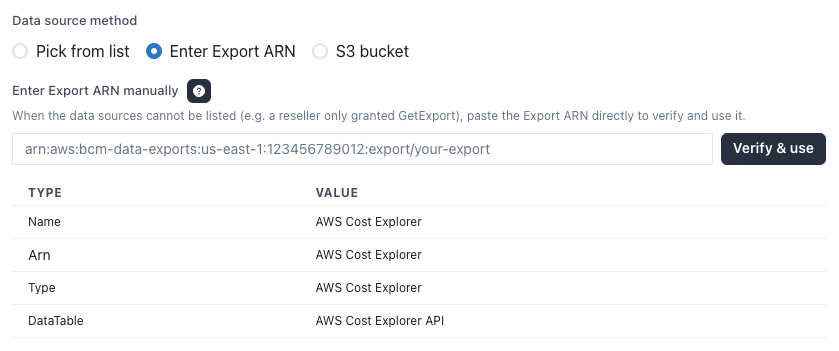
Pick “Enter Export ARN,” paste the ARN, click “Verify & use,” and MOF echoes the parsed Name / type / table.
B-3: the reseller grants S3 only (direct read)
The reseller won’t give any CUR/Export API permission at all — only opens up the S3 where the bill files live. When several member accounts’ bills land in one bucket and only bucket access is granted, this is also the answer. B-1 (delivered to your own bucket) connects through this same path in MOF, just with your own bucket.
The reseller has two ways to open S3, pick one:
① Add a bucket policy that allows your account (you read with your own key):
{
  "Version": "2012-10-17",
  "Statement": [
    {
      "Sid": "AllowCustomerList",
      "Effect": "Allow",
      "Principal": { "AWS": "arn:aws:iam::<your-account-id>:root" },
      "Action": "s3:ListBucket",
      "Resource": "arn:aws:s3:::<bill-bucket>",
      "Condition": { "StringLike": { "s3:prefix": "<your-prefix>/*" } }
    },
    {
      "Sid": "AllowCustomerGet",
      "Effect": "Allow",
      "Principal": { "AWS": "arn:aws:iam::<your-account-id>:root" },
      "Action": "s3:GetObject",
      "Resource": "arn:aws:s3:::<bill-bucket>/<your-prefix>/*"
    }
  ]
}
⚠️ With a bucket policy (option ①), both sides must allow it: the bucket policy above (resource side) and the IAM on your own key must also allow
s3:GetObject/s3:ListBucketon that external bucket. An admin-level key is usually fine; with a scoped key, remember to add those two S3 permissions, or it’ll silently fail to read.
② Or the reseller issues a read-only S3 key in their account (same policy as ListCurFiles + GetCurFiles from B-2, minus GetExport). This is a one-sided grant — no need to touch your own IAM, so it’s simpler if option ① is a hassle.
Either way, the reseller also has to tell you these values (you can’t see the export definition, so ask — or read them off your own bucket per the next section):
S3 bucketPrefix(your account’s prefix, usually one per sub-account)Export name(part of the S3 path — must be exact)Region- Table type: CUR 2.0 or FOCUS
- File format: Parquet or CSV (gzip)
In MOF: Add an AWS account → Data source method → S3 bucket → fill in those values (S3 bucket / Prefix / Export name / Region / Table type / File format). CUR 2.0 and FOCUS are supported today, in Parquet or CSV (gzip).
Pick “S3 bucket” and fill: S3 bucket / Prefix / Export name / Region / Table type / File format.
How to get these values in AWS
For the B-2 Export ARN and the B-3 six values, the simplest way is to have the reseller run a CLI command in their account and send you the result (the console’s Data Export page doesn’t actually show the ARN). For B-1 (delivered to your own bucket), you run these yourself in your own account.
① Get the Export ARN (for B-2):
aws bcm-data-exports list-exports --region us-east-1 \
  --query "Exports[].[ExportName,ExportArn]" --output table
② Get all six S3 values at once (for B-3):
# Standard export (CUR 2.0 / FOCUS)
aws bcm-data-exports get-export --region us-east-1 --export-arn "<ARN from step 1>" \
  --query "Export.{Name:Name,Bucket:DestinationConfigurations.S3Destination.S3Bucket,Prefix:DestinationConfigurations.S3Destination.S3Prefix,Region:DestinationConfigurations.S3Destination.S3Region,Format:DestinationConfigurations.S3Destination.S3OutputConfigurations.Format,Table:keys(DataQuery.TableConfigurations)}"

# Old-style Legacy CUR
aws cur describe-report-definitions --region us-east-1 \
  --query "ReportDefinitions[].{Name:ReportName,Bucket:S3Bucket,Prefix:S3Prefix,Region:S3Region,Format:Format}" --output table
The output fields map straight to the form: Bucket→S3 bucket, Prefix→Prefix, Name→Export name, Region→Region, Table (COST_AND_USAGE_REPORT→CUR 2.0, FOCUS_1_0_AWS→FOCUS), Format (PARQUET→Parquet, TEXT_OR_CSV→CSV).
No CLI? You can still check by hand: find this path in the bucket, and if the Manifest is there, your values are right —
<prefix>/<name>/metadata/BILLING_PERIOD=YYYY-MM/<name>-Manifest.json(for FOCUS, lowercase it tobilling_period).
A message you can forward to your reseller (Situation B only)
I’m connecting a cost-analysis tool and need it to read my account’s AWS bill. Any of these three works (simplest first):
- Simplest: deliver my account’s CUR 2.0 export to my S3 bucket (cross-account delivery, supported since 2026-03), and I’ll read it myself;
- Or, in your account, give me an IAM key scoped to
bcm-data-exports:GetExport(my export) plus read-only on the matching S3 prefix, and send me the key, Export ARN, and region;- Or open up the S3 where the bill lives (add a bucket policy for my account, or issue a read-only S3 key), and tell me: bucket, my prefix, export name, region, table type (CUR 2.0 / FOCUS), and format (Parquet / CSV).
For options 2 and 3, a single
aws bcm-data-exports get-export --export-arn <ARN>in CloudShell dumps those values for you to send over.
After it’s connected
Once the bill is in MOF, it’s split by line_item_usage_account_id into each sub-account — so even if a dozen member accounts’ bills land in one bucket, you get a single view broken down by account and by service. That’s exactly what a multi-sub-account reseller setup wants: no fiddling with accounts one by one, everything in one place.
One heads-up: make sure the export / prefix you’re given contains only your own account. If you get the reseller’s full CUR (mixed with other customers), that data comes in too — so it’s best to export a separate copy, or use a prefix that holds only your account.
FAQ
I’m not the payer — can I create my own export? Usually yes. A member account can create its own CUR / Data Export by default (its own usage only), unless the reseller specifically blocks it with an SCP. Just try creating one under Billing and Cost Management → Data Exports to find out.
I got a permission error creating the export — now what? That means the reseller used an SCP to restrict member accounts. Go to Situation B: have them deliver to your bucket, or give you a scoped key / open S3.
The reseller will only grant S3 — does that work? Yes, use B-3 (S3 direct read). As long as you can read the bill files in the bucket, no CUR/Export API permission is needed.
Which bill formats are supported? CUR 2.0 and FOCUS today, in Parquet or CSV (gzip). Go with CUR 2.0 or FOCUS; cross-account delivery to your bucket also only works for CUR 2.0.
Anything different in AWS China (Ningxia / Beijing)?
Same mechanics — just swap the ARN partition and region: aws → aws-cn, us-east-1 → cn-northwest-1 (and the CLI --region likewise).
Current as of August 2026. AWS Data Exports / CUR setup and permissions may change over time — check the official AWS docs and your own environment.
Related
Content · 18 Aug, 2026
Why cloud costs spiral out of control
Company · 19 Aug, 2026
Beyond the dashboard: FinOps needs judgment, not just visibility
Feature · 20 Aug, 2026
Meet Mof: multi-cloud cost, one clear view
Content · 21 Aug, 2026
FinOps tools for Chinese clouds: Alibaba, Tencent, Volcengine & Huawei (2026)
Content · 22 Aug, 2026
Is AI really cheaper than people? Five hidden costs (2026)
All your multi-cloud costs, in one place
The dashboard is ready to self-host; the cloud architect Agent is coming — join the waitlist for early access.